![ndustrial-logo-color-1-1.png]](https://info.ndustrial.io/hs-fs/hubfs/ndustrial-logo-color-1-1.png?height=40&name=ndustrial-logo-color-1-1.png)
Review this workflow after completing the facility/store survey and before assigning Ndustrial equipment to refrigerated assets. It provides the end-to-end process for confirming assets in Linq, completing required asset tagging and metadata gathering, updating QR tags when necessary, synchronizing changes, and validating the updated asset list in the Ndustrial provisioning app.
For detailed tag-placement examples, see Asset QR Tag Placement & Remapping.
Table of Contents:
1. Confirm the In-Scope Assets
While completing a facility survey, identify the refrigerated assets considered in scope for the assigned job. Include assets on the sales floor and in stock rooms, whether working or not.
In scope (tag and sensor):
- Walk-in coolers and freezers
- Reach-in coolers and freezers, including:
- Multi-door glass units
- Open-air grab-and-go cases
- Walgreens-owned units on sales floor, outside checkout area
Tag only (no sensor):
- Residential refrigerators used to stock product (see Section 4)
Tip: When you arrive, ask the manager on duty to show you every refrigerated asset that holds product for sale, including the stock room. Skip out-of-scope pharmacy and checkout units. If the manager isn’t sure, say you’re looking for the units their refrigeration vendors service. Remember that stock room units may still be missed this way, since some aren’t in Walgreens records at all.
Out of scope (no tag, no sensor):
- Pharmacy units for prescriptions, vaccines, or pharmaceuticals
- Impulse coolers and freezers at checkout or the pharmacy waiting area (vendor-branded or Walgreens-owned)
- some impulse-buy assets may already be tagged in Linq. This Linq record can be ignored/left as-is.
- Other vendor-owned equipment
- Employee breakroom refrigerators and freezers
- Non-refrigeration equipment
Before continuing, confirm that you can physically locate each in-scope asset and distinguish it from adjacent or connected equipment.
Identify assets from what is physically in the store, not from Linq. Linq records may be missing, outdated, or duplicated, so use them only as an indicator of what to expect.
2. Open the Facility in Linq
Open the correct facility in Linq using the link provided in the Ndustrial provisioning app.
Open Linq:
https://wg.linq.io/auth/login
Compare the physical assets identified during the facility survey with the refrigeration assets currently listed in Linq.
For each physical asset, determine whether:
- The correct asset already exists
- The asset exists but requires updated information
- The asset exists but requires a new or relocated QR tag
- The asset is missing in Linq and must be created
- this could mean completely missing, or exists but under the wrong asset type (see Section 4)
- Multiple records may represent the same physical asset (unlikely, but ensure no secondary temporary/virtual tag exists that attempts to represent the asset)
Avoid creating a duplicate when an existing asset record can be correctly matched and updated.
3. Create or Update Each Asset (Linq)
Existing Assets
When the correct asset already exists in Linq:
- Confirm that the record represents the physical asset in front of you.
- Review the asset type, name, location, metadata, and assigned QR tag.
- Correct or complete inaccurate or missing information (see Required Asset Information below).
- Determine whether the current physical tag can remain in place or must be relocated under the project tagging strategy and remapped in Linq.
- Save the changes.
- Manually sync the asset information to ServiceChannel.
Missing Assets
When an in-scope physical asset does not exist:
- Create a new refrigeration asset in Linq.
- Complete all required asset information. (see Required Asset Information below).
- Assign an approved physical QR tag.
- Save the new asset.
- Manually sync the asset information to ServiceChannel.
Do not create a new asset simply because an existing tag is missing, damaged, or located incorrectly. When the existing Linq record represents the correct equipment, update that record and use Remap QR instead.
4. Handle Asset Exceptions (Linq)
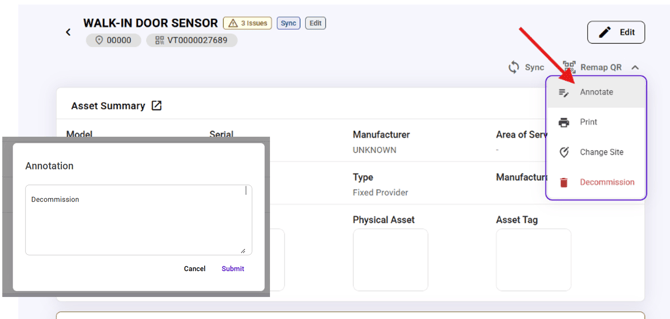
Installers can’t decommission assets in Linq. Use Annotate feature to record an action taken or to request action from the Walgreens RTM team. Keep notes short, for example:
Decommission, duplicateDecommission, does not existDecomission, this record was created in errorNew asset, not working
Wrong asset type:
(e.g., a walk-in physically exists, but was previously recorded as a reach-in for Linq, or vice versa)
Asset type can’t be changed in Linq by the installer.
- Create a new asset with the correct type.
- Annotate the incorrect record (e.g.,
Decommission, wrong asset type).
Asset tag assigned to the wrong store:
(Linq shows a store error when asset scanned)
- Create the asset at the correct store with a new asset tag.
- Annotate the record that showed the error.
Previously recorded in Linq with no physical asset present:
-
Annotate
Decommission, does not exist.
Duplicate records:
-
Keep the record with an approved tag (or from the end customer's perspective, service history). Annotate each extra record
Decommission, duplicate.
Residential style refrigerators used for overstock:
(typically non-sales floor located)
- Create a new a new record in Linq (will see an option to tag as
Residential Refrigeration) - Do not install a sensor on this asset - Customer will determine what should be done with asset in the future, whether it gets replaced at store, or etc.
5. Complete the Required Asset Metadata Collection
Verify and complete all required refrigeration asset fields. Some fields may not appear required in Linq but must still be completed so the asset synchronizes properly.
Required information includes:
Asset Status and Classification
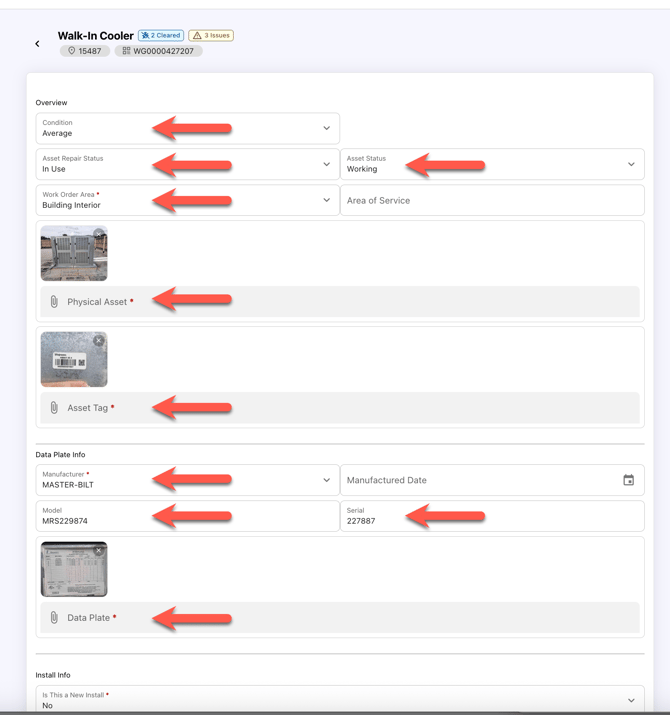
Complete the following fields:
- Condition
- Asset Repair Status: Select
In Use - Asset Status: Select
Working- (unless the in-scope asset is clearly not in use at time of install)
- Work Order Area: Select
Building Interior - System: Select
refrigeration_retail - Is This a New Install: Select
No - Door Count (number of customer-facing doors the asset serves)
Required Photos
Capture and attach:
- Physical Asset: A clear photo showing the complete refrigerated asset
- Asset Tag: A clear, readable photo of the physical QR or barcode tag
- Data Plate: A clear photo of the equipment nameplate
- (Optional) Walk-In Full Front View: a clear photo of the front customer-facing doors of walk-in units
Data Plate Information
Enter the information shown on the equipment nameplate:
- Manufacturer
- Model
- Serial Number
Use the equipment nameplate. Do not guess or enter assumed values.
Refrigerant Information
Refrigerant field information (shown below) is not a requirement for syncing asset information to Service Channel, for this specific project scope.
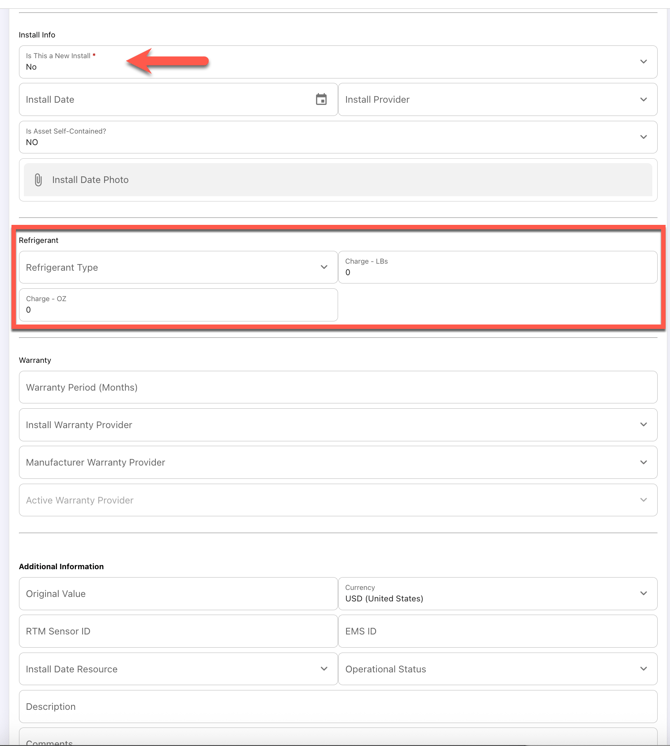
RTM Sensor ID
Do not enter a Sensor ID on the refrigerated asset.
Ndustrial will automatically populate the appropriate sensor information after the hardware provisioning job is completed.
6. Find Correct Metadata per Asset Type
Reach-In Assets
For reach-in coolers and freezers, collect the manufacturer, model, and serial-number information from the equipment nameplate on (or inside) the refrigerated unit.
Confirm that the Linq record represents the complete reach-in asset rather than an individual door or section, unless physically separate units are intended to be managed as separate assets.
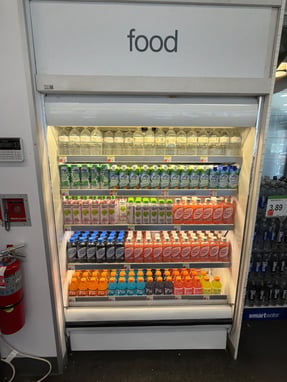
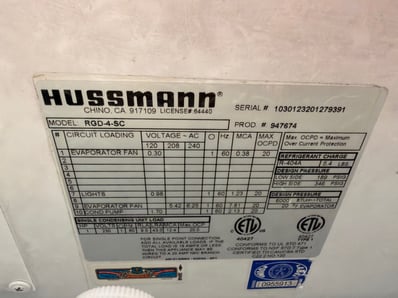 (Example of a reach-in cooler asset, where asset nameplate is found directly within unit)
Remote reach-ins have no condensing unit in the case, but can look like a standard reach-in. They’re served by a unit on the roof or in a mechanical room, which changes the asset data collection needed for Linq. See Condensing Units below.
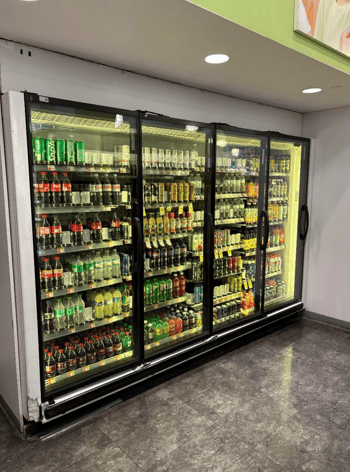
(example remote reach-in, where refrigerant lines are run behind drywall top of unit - nameplate info would come from a condenser unit elsewhere in/above store)
Walk-In Assets
For walk-in coolers and freezers, collect the manufacturer, model, and serial number from the condensing unit (usually rooftop, or mechanical room) that serves the walk-in. The walk-in enclosure itself may provide little useful maintenance/service information.
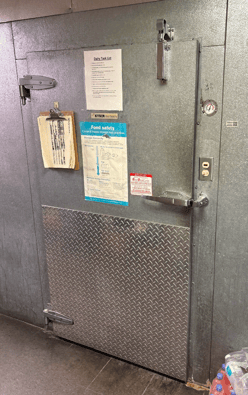
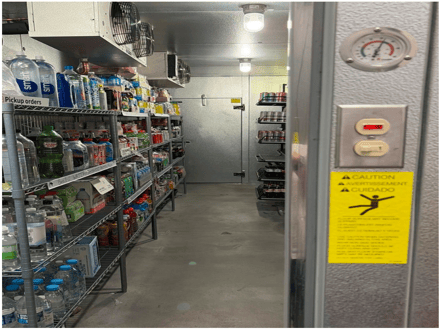 (example walk-in units)
The existing asset tag may be on the condensing unit from a previous tagging strategy. Match the unit to its walk-in (see Condensing Units below), then remap the tag (Section 7 below).
Use the approved roof-access and safety process when collecting nameplate information or removing an existing tag. Do not enter unverified equipment information.
Condensing Units (Roof or Mechanical Room)
Walk-ins and remote reach-ins are served by condensing units on the roof or in a mechanical room.
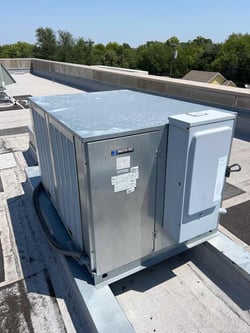
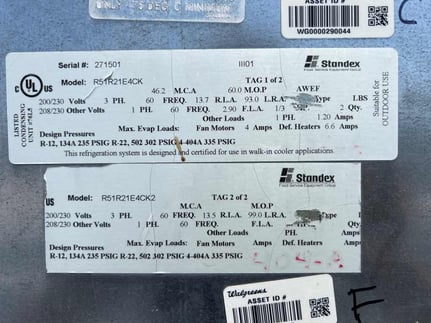
(example rooftop condenser unit for walk-in cooler)
Linq data plate info and photos for these assets must come from the condensing unit, not from equipment inside the walk-in case. Replace any in-case info with the condensing unit’s model, serial, etc.
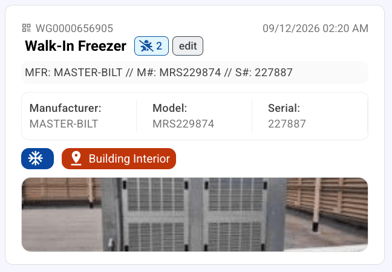
Before editing in Linq: Photograph each condenser unit’s data plate, labels, and tags, and note which in-store asset it serves below. Make Linq edits at the in-store asset, since required photos are taken there during the re-mapping process (which is likely to be needed if asset tags do not exist in the approved locations at walk-in entry door frame).
Helpful Matching indicators (rooftop to in-store):
Sometimes the following clues can be used to make sure that you are mapping the correct condenser unit to the Linq asset in store (e.g. the walk-in cooler vs. walk-in freezer)
- Model number: Model number may include L (low temp, freezer) or M (medium temp, cooler).
- C or F written on or near the old tag
- “Cooler” or “Freezer” label, often on the disconnect box
- Data plate text naming the application, e.g., “used in walk-in freezer applications”
- Roof location relative to the asset inside the store
- MCA (Minimum Circuit Ampacity): Compare units on the same roof. A higher MCA can point to the freezer. Use this only alongside other indicators.
| Situation | Asset Tagging Related Action |
| Condensing unit is marked as cooler or freezer (see indicators above), or can be determined otherwise. | In store open the matching walk-in or remote reach-in record, replace its data plate info and photo with this unit’s (photos in camera roll taken from the roof), then remap the tag if needed (Section 7) |
| No markings, but the unit’s position lines up with an in-store asset (e.g., directly above the walk-in) | Same as above |
| More condensing units than in-store assets (e.g., 4 rooftop units serving 2 walk-ins) | Photograph every unit. On each in-store asset’s record, enter one unit’s data plate info, and add the second unit’s data plate as an additional photo. |
7. Confirm, Relocate, or Remap Physical Asset QR Tag
An existing physical tag may remain when it is:
- Present on the correct asset
- Scannable
- Associated with the correct Linq record
- Located in an approved, accessible position
- Not damaged, obscured, or routinely blocked
- The approved new-style Walgreens tag (logo, WG + 10 digits, QR code)
- Right side up
- Fully adhered, with no part overhanging an edge
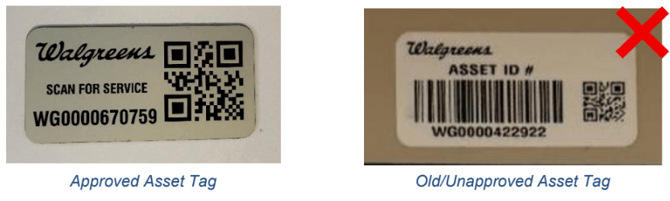
Use Remap QR when:
- No physical tag is present
- The tag is upside down, an old unapproved tag, peeling, or overhanging an edge
- Linq shows a virtual tag, often identified with VT
- The asset has a temporary or custom identifier, such as
1411_8/9/2024_WALK-IN COOLER
- The asset has a temporary or custom identifier, such as
- The existing QR code is damaged or cannot be scanned
- The tag is associated with the wrong physical asset
- The tag is in an inaccessible or strategically incorrect location (e.g. on frame of customer facing walk-in doors in store)
- A walk-in asset’s tag is located on rooftop or exterior condensing equipment and must be relocated to the walk-in entrance
For walk-in assets, some existing tags may be on the condensing unit from a previous tagging strategy. Keep the existing Linq record, use Remap QR to assign a new tag, and place it on the walk-in entry door frame (not the door).
Remapping changes the scannable identifier while preserving the existing asset record and ServiceChannel history.
-
After remapping, retake the Asset Tag photo in Linq. Other existing photos can stay if still accurate.
See Asset QR Tag Placement & Remapping for detailed placement, removal, and remapping instructions.
(see 00:58 below).
8. Manually Sync Every Created or Changed Asset
Every asset that is created, edited, or remapped must be manually synced from Linq to ServiceChannel.
After completing changes, open the asset (select it, or scan its tag to select it), then tap Sync in the menu at the top of the asset page. This syncs to ServiceChannel, which the Ndustrial Provisioning App pulls from.
Saving the asset does not necessarily complete the ServiceChannel update. Confirm that the manual sync has been initiated successfully before leaving the asset workflow.
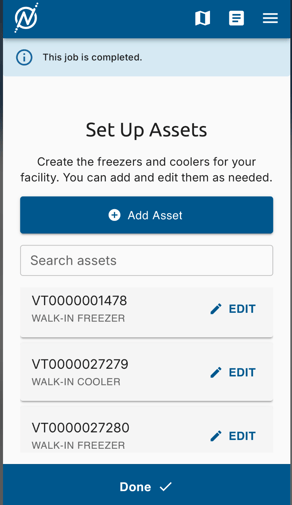
At the end of the Asset Tagging process, an installer will return to the Ndustrial Provisioning App, where they should see a list of updated Asset Tag records.
If Asset Tags have been updated in Linq but are not showing in the Ndustrial Provisioning App, it’s likely the sync between Linq, ServiceChannel, and Ndustrial did not complete.
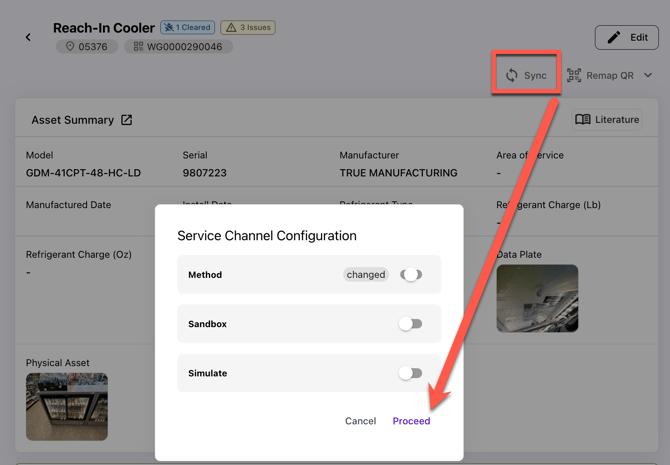
9. Confirm the Updated Asset List in the Ndustrial App
After all required Linq changes have been saved and synced, return to the Ndustrial provisioning app.
Confirm that:
- Every in-scope refrigeration asset appears
- Newly created assets are included
- Corrected asset names are visible
- Remapped assets display the new QR tag identifier
- Temporary or virtual identifiers are no longer being used
Do not assign monitoring equipment to an outdated, duplicate, or incorrect asset record.
-
Records annotated for decommission may still appear until end customer removes them. Do not assign equipment to them, or to residential units.
If changes do not appear after the expected synchronization period (near instantaneous), refresh the asset list or try re-syncing the asset from within the Linq app.