![ndustrial-logo-color-1-1.png]](https://info.ndustrial.io/hs-fs/hubfs/ndustrial-logo-color-1-1.png?height=40&name=ndustrial-logo-color-1-1.png)
Use this guide after the Asset Setup & Tagging Process directs you to remap or relocate an asset tag.
1. Prepare the New Tag Location
Approved tag: Walgreens logo, WG + 10-digit ID, and QR code, supplied by Walgreens. Older barcode-style “Asset ID #” tags are not approved and should be replaced.
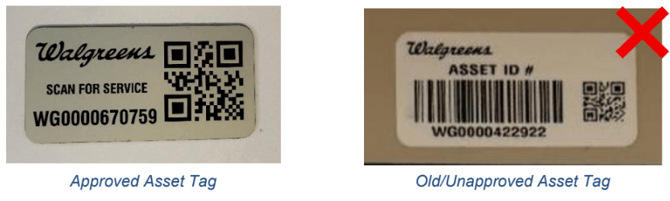
Before applying a new tag:
- Confirm that you are working with the correct physical asset and Linq record.
- Choose a permanent surface that is visible and easy for facility personnel to scan, per the asset type standards below.
- Avoid locations routinely blocked by product, shelving, or movable equipment.
- Never place the tag on a door, since doors can be replaced without replacing the asset. Avoid removable panels unless specifically directed.
When applying the tag:
-
- Position it horizontally, long edge side to side.
- Use a flat, clean, dry surface, with no part overhanging an edge.
- Press until fully bonded.
2. Reach-In Tag Placement
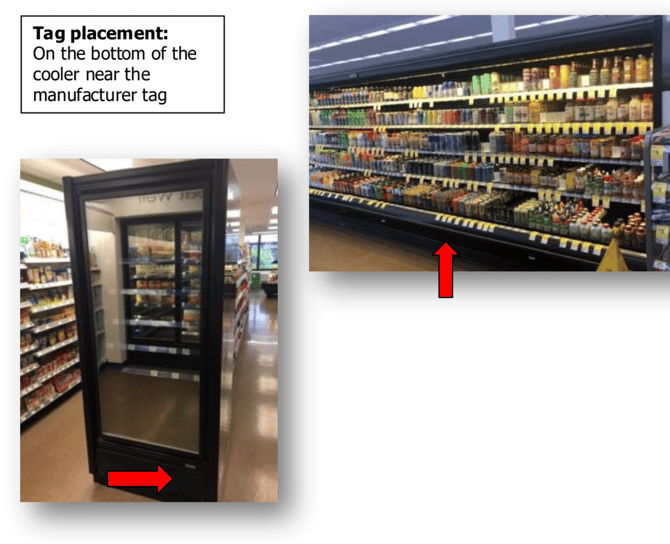
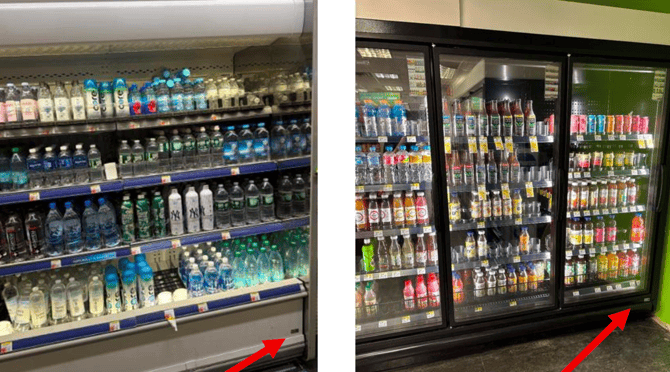
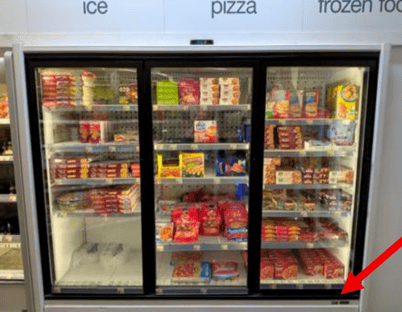
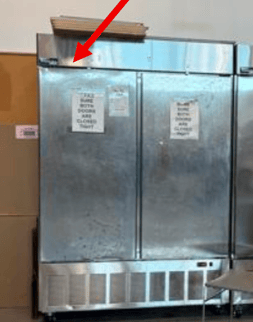
Place the tag on the exterior frame, ½–1 in to the left or right of the manufacturer logo/badging:
- Logo near bottom right (typical on sales floor units): place the tag to the left of the logo.
- Logo near top left (typical on stock room units): place the tag to the right of the logo.
No visible logo: Place the tag in the bottom right corner.
Not enough space (other labels, plates, or an unsuitable surface): Place the tag within 8 in left or right of the logo, or within 4 in above or below it. Always keep it horizontal.
Reach-ins do not need a C or F marking.
The tag should clearly correspond to the complete refrigerated asset and remain accessible during normal facility operations.
Below are examples of approved tag locations for varying styles of reach-in assets
3. Walk-In Tag Placement
Place the tag on the entry door frame (not the door), 1–2 in from the frame edge, level with the manufacturer logo. The logo is usually near the top of the door, on the side that opens (opposite the hinges).
Not enough space (other labels, plates, or an unsuitable surface): Place the tag elsewhere on the entry door frame, at a height the store manager can easily reach and scan.
Do not place tags on or near the frames around the customer display doors.
Freezer accessed through the cooler: Some walk-in freezers are only reachable through the walk-in cooler (and vice versa). Both tags then go on the cooler’s (or exterior asset's) entry door frame, with the outside asset's tag about 2 in above the inside asset's tag.
Mark each walk-in tag legibly with a black Sharpie:
- C for walk-in cooler
- F for walk-in freezer
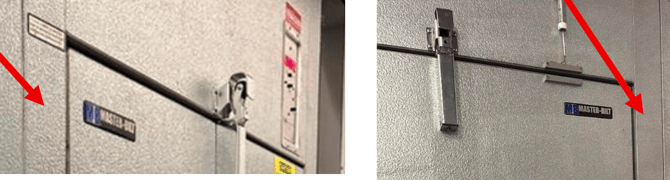
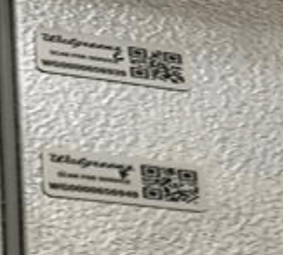
Existing tags may be on the condensing unit from a previous tagging strategy. See Condensing Units in Asset Setup & Tagging Process to match the unit to its walk-in before remapping.
4. Remove the Previous Tag
Remove the previous tag when a new tag replaces it, or when it’s in an unapproved location, such as:
- Rooftop or mechanical room condensing units
- Metal or glass doors
- On or near the frames around walk-in customer display doors
- Inside an asset
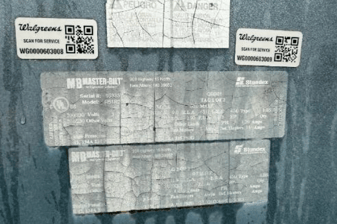 .
. 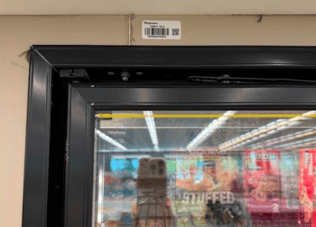 (unapproved asset tag locations - to be removed)
When removal is required:
-
- Remove or scrape off the old sticker.
- Ensure the previous QR code can no longer be scanned.
- Avoid damaging the equipment surface.
Do not remove tags from non-refrigeration equipment, such as HVAC units near condensers on rooftops.
5. Remap and Verify the New Tag
Use Remap QR in Linq to associate the existing ServiceChannel asset record with the new physical tag.
After placement:
- Scan the new tag with the Linq Remap feature and follow the prompts.
- Confirm that the tag is secure, readable, horizontal, and in an approved location. Walk-in tags should be marked C or F.
- Retake the Asset Tag photo for the Linq record. Other existing photos can stay if still accurate. Complete any other required fields.
- Save the change and manually sync the asset to ServiceChannel (see Section 8 of Asset Setup & Tagging Process).
After a successful sync, both Linq and the Ndustrial Provisioning App should show the updated Tag ID.