![ndustrial-logo-color-1-1.png]](https://info.ndustrial.io/hs-fs/hubfs/ndustrial-logo-color-1-1.png?height=40&name=ndustrial-logo-color-1-1.png)
Use this guide when the ColdOS Sense gateway (Dragino LPS8N) isn’t coming online during an install. You only need to look at the lights on the front of the gateway. Every issue ends in one of two calls: customer IT or the Ndustrial Hotline.
1. Before You Start
- Write down the store number, switch number, and port number you were assigned.
- Note the gateway ID from the label on the gateway. Both customer IT and Ndustrial may ask for it.
- Plug the network cable in before power. If power went in first, unplug the power, wait 10 seconds, and plug it back in with the network cable connected.
- Give the gateway 5 minutes after power-on before judging the lights. Blinking during the first few minutes is normal.
2. The Four Gateway Lights
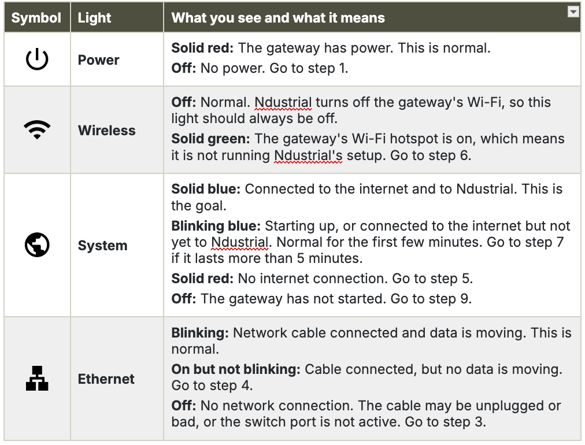
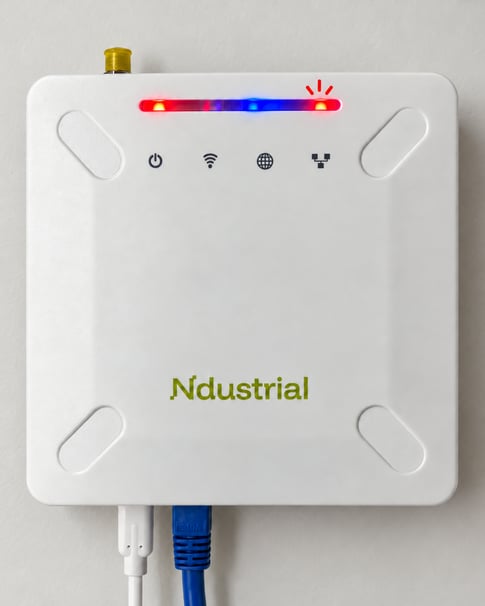
(powered and network connected example below)
3. Troubleshooting Steps
Wait 5 minutes after power-on. If the Ndustrial provisioning app still shows the gateway offline, check the lights in this order and stop at the first match.
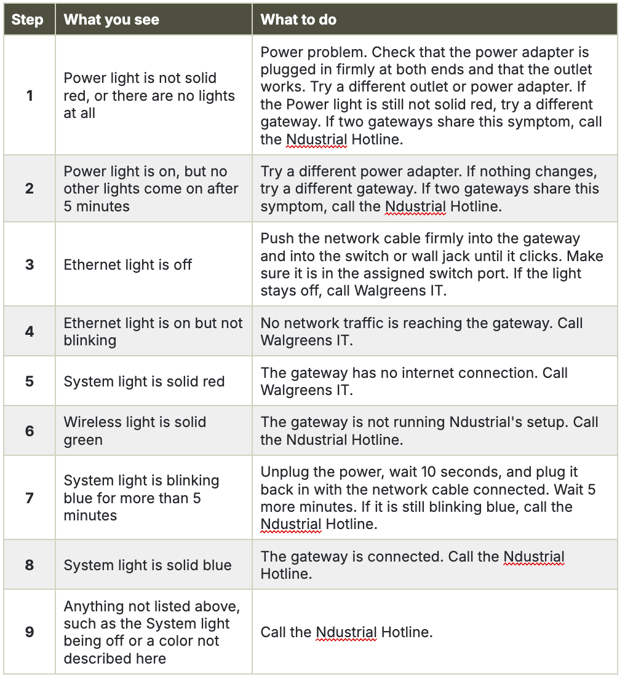
If all the lights go dark and the gateway restarts about every 15 minutes, it’s restarting itself because it has no internet connection. Treat this as step 5 and call customer IT.
4. Calling Customer IT
When customer IT answers, say:
“I’m installing an Ndustrial temperature gateway at store [store number]. I was assigned switch [switch number], port [port number]. Can you confirm the switch port status and VLAN configuration, check which MAC address is connected to that port, and tell me whether you see any network activity from it?”
Issues customer IT has fixed in the past:
- The installer was given the wrong switch port.
- The assigned port wasn’t configured for untagged VLAN 65.
- The firewall was blocking outbound traffic from the gateway.
After IT makes a change, unplug the gateway’s power, wait 10 seconds, plug it back in, and check the lights again after 5 minutes.
5. Calling the Ndustrial Hotline
Call 980-372-6771 and press 2 for gateway support (see Installation Support Contacts).
Have this ready:
- Store number, switch and port number, and gateway ID
- How long the gateway has been powered on
- What you’ve already tried
- What each of the four lights is doing (color, and solid or blinking)
Issues Ndustrial has fixed in the past:
- The gateway was powered on before the network cable was plugged in, so it missed its startup check-in with Ndustrial. Fix: unplug the power, wait 10 seconds, and plug it back in with the network cable connected.
- The gateway was failing to authenticate with Ndustrial. Ndustrial fixes this remotely, so stay on site until they confirm the gateway is online.