![ndustrial-logo-color-1-1.png]](https://info.ndustrial.io/hs-fs/hubfs/ndustrial-logo-color-1-1.png?height=40&name=ndustrial-logo-color-1-1.png)
Always follow any device-specific or job-specific instructions in the Ndustrial provisioning app.
1. Start at the Network Cabinet
Every install starts with the gateway at the network cabinet. Don’t predict signal from distance or walls ahead of time.
- Install the gateway at the network cabinet. Plug in the network cable before power.
- Wait about 5 minutes and confirm the gateway is online (System light solid blue). If it isn’t, see Gateway Troubleshooting.
- Install the sensors using the Ndustrial install app. Sensors send data more frequently during the install job.
- Confirm every in-scope sensor is compliant. Until the app shows compliance, call the Ndustrial Hotline to check.
- Move the gateway only if one or more sensors are noncompliant (Section 4).
After the installer closes the Ndustrial provisioning job, sensors switch to normal interval reporting (usually 10–15 min intervals, depending on customer requirements).
2. Mounting and Orientation
Mounting location, in order of preference:
- Top of the network cabinet (if accessible)
- Side of the network cabinet, if there’s no top surface
- Nearby wall, last resort, since the network cabinet could be moved later and the gateway would need to be removed from its wall mount
Placement:
- Mount approximately 8 ft high or above the shelving line where possible.
- Point the antennas straight up, extending above any metal enclosure.
- Do not mount inside the network cabinet or another metal enclosure, or above a metal drop-ceiling grid.
- Keep approximately 3 ft from other large metal surfaces, motors, and condensing units.
- Mount within approximately 6 ft of the network port (supplied cable length).
- Keep a clear line of sight down the aisle toward the cooler doors where possible.
Power:
- Use an accessible wall outlet within approximately 5 ft of the gateway (supplied cable length).
- Do not power the gateway from a power strip, even if one is nearby.
- No wall outlet in reach: Attempt to use Power over Ethernet (PoE).
- Confirm the store’s switch supports PoE. Look for a label such as “PoE+ Ports” on the switch.
- Run Ethernet from the PoE switch port into the PoE splitter.
- Plug the splitter’s Ethernet cable into the gateway’s Ethernet port and its USB-C cable into the gateway’s power port.
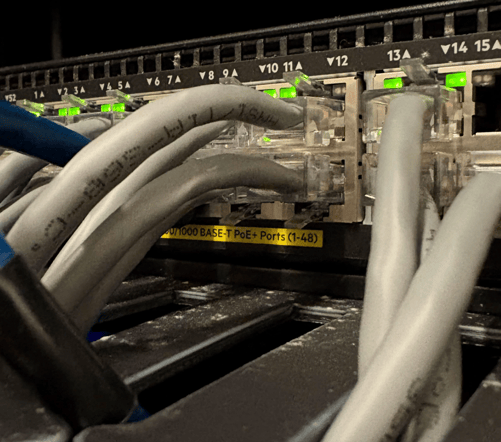
(use only model of PoE splitter approved by both end customer and Ndustrial)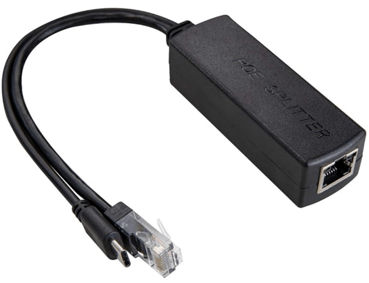
No wall outlet and no PoE switch: Submit a customer request for accessible power. There is no other approved power access option at this time.
3. Facility Examples Needing a Second Gateway
Each gateway needs its own network port, pre-provisioned by customer IT. A single gateway typically covers all sensor connectivity at a facility; however, a second gateway is approved in the following scenarios:
Two-story locations
Floors and ceilings block too much signal for one gateway to cover both levels. If both floors have in-scope assets, install one gateway per floor and place each using the rules above, judged only against the sensors on its floor. If only one floor has in-scope assets, use one gateway. If the network cabinet is on a different floor from the assets, relocate the gateway to the assets’ floor (see Section 4).
Stock rooms with stainless steel solid-door reach-ins
These all-metal units block more signal than typical sales floor reach-ins, especially from a gateway outside the stock room. They’re often missing from the customer’s asset records, so they’re usually found only on arrival. If stock room sensors are noncompliant and the first gateway is outside the stock room, a second gateway may be installed in or near the stock room, provided an open port is available or can be provisioned.

4. Move the Gateway
Move the gateway only when one or more sensors are noncompliant (e.g. poor signal), or when the network cabinet is on a different floor from the assets (Section 3). The gateway must be online (System light solid blue) before you move it. If it isn’t, see Gateway Troubleshooting.
When moving, relocate the gateway to an open wall or ceiling jack closer to the sensors and power it through the PoE splitter.
New location, in order of preference:
- Office or back room close to the assets containing noncompliant sensors (away from customer sales floor)
- Photo area or behind the registers (staff-only space)
- No open jack closer to the sensors: see below
.png?width=670&height=504&name=gateway_placement_diagram%20(3).png)
Relocation steps:
- Find the noncompliant sensors on the floorplan and roughly where the middle of that group is.
- Find an open network port closest to that middle point, using the relocation preferences above.
- Record the network port label (number on the wall plate), store number, and gateway ID.
- In the network cabinet, find the patch panel port matching that network port label (e.g., label B-14 = patch panel B, port 14). Patch a cable from the gateway’s assigned switch port to that patch panel port. The switch port stays the same; only the patch panel side changes.
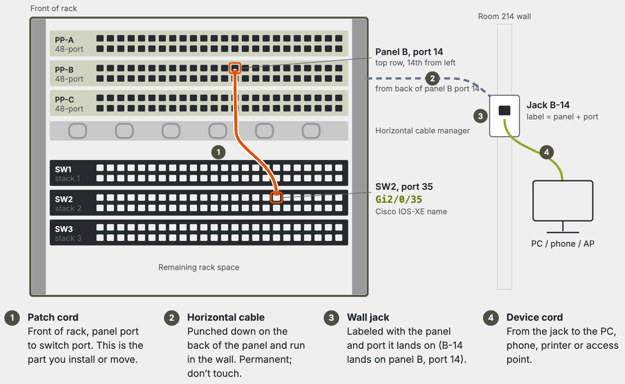
(example network cabinet switch and patch panel diagram) - Mount the gateway at the new network port following Section 2, clear of doors, carts, ladders, stock being moved, and shelving that gets restocked. Connect the network port to the PoE splitter, then the splitter’s Ethernet cable to the gateway, then its USB-C power cable.
- If the gateway shows no lights, it’s not getting power from the new network port. Double-check that the patch cable is in the panel port matching the network port label. Patch panels usually count left to right across each row (1–24 top, 25–48 bottom), while switches usually count down the columns (odd on top, even below), so check the numbers printed above the ports. If the patch is correct and there are still no lights, the cable run to that network port is likely bad. Pick another location and start again from step 2.
- Wait about 5 minutes and confirm the gateway is online (System light solid blue). If not, see Gateway Troubleshooting.
- In the Ndustrial Provisioning app, select the existing gateway and navigate through its provisioning steps again (do not add a new gateway). Update its map location and upload new mounting photos of it.
- Confirm every in-scope sensor is compliant. If you have questions, call the Ndustrial Hotline.
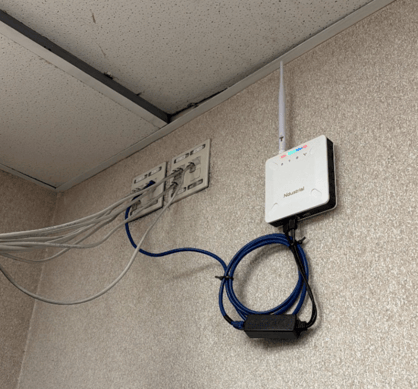 (PoE Gateway Placement)
No open network port closer to noncompliant sensors: Leave the gateway where it is (so compliant sensors keep reporting) and call the Ndustrial Hotline. Do not run a new network drop unless Ndustrial confirms it.